vesica
Straight lines.
Curves appear.
Place points around a polygon, pick a rule for how they connect, and watch the straight lines you'd draw with a ruler and a circle of dots turn into cardioids, stars, and flowers. Then bend the lines, stack the layers, or draw the shape yourself.
For iPhone, iPad, and Mac. Requires iOS 26, iPadOS 26, or macOS 26 or later. One-time purchase, no ads, no account.
String art
A ruler can't do this.
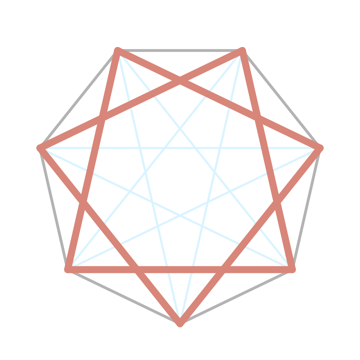
String art starts with a circle of nails and a rule: from each nail, run a thread to the nail a fixed number of steps along. Enough threads and a curve shows up where no thread is curved. vesica draws that, with as many points as you like, and then keeps going: rules a ruler can't follow, chords that bend, shapes you draw by hand, and a canvas that spins.
Connect
Two rules.
Endless patterns.
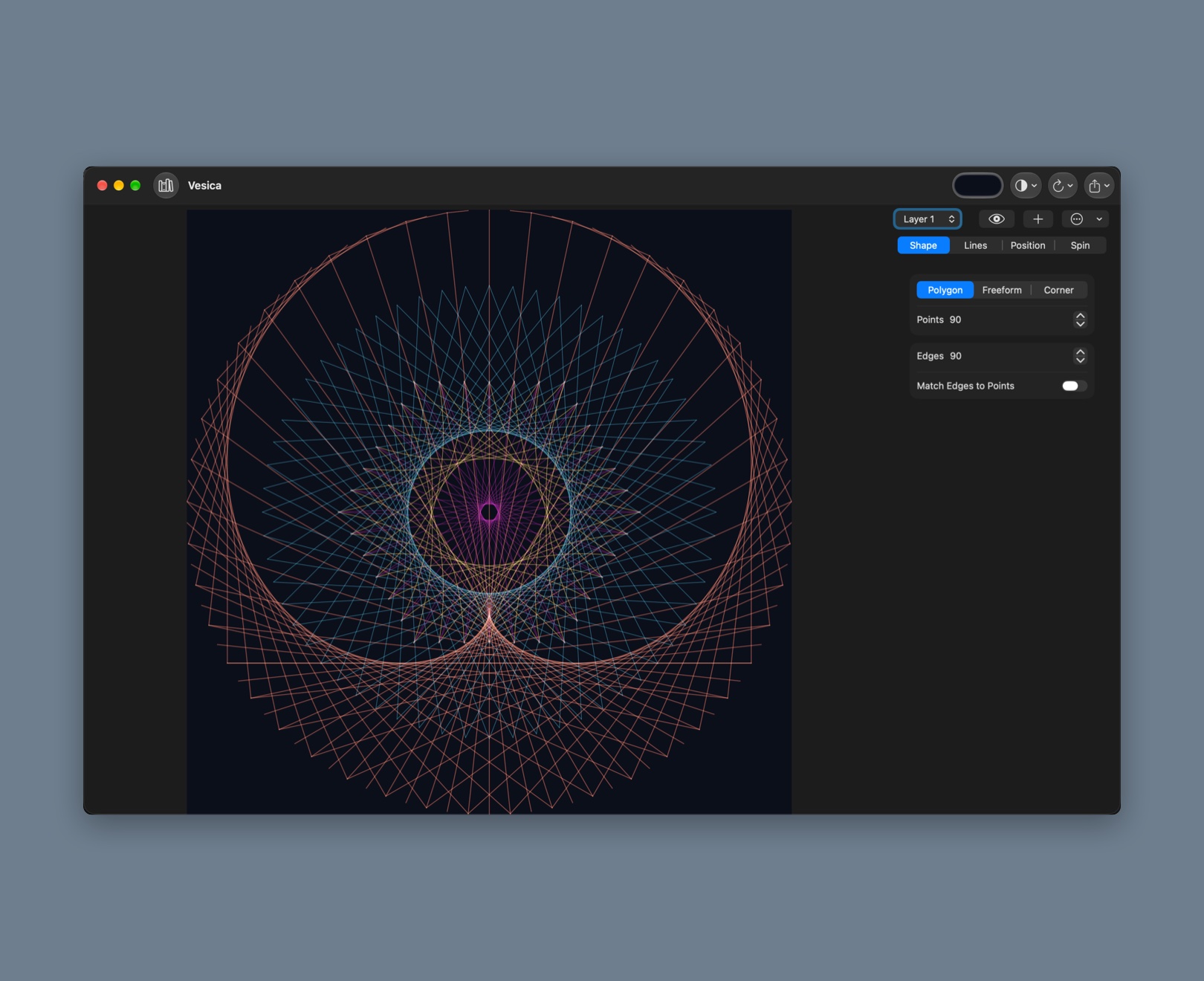
Any regular polygon from 3 to 100 edges, with 3 to 100 points spaced evenly around it. Lock edges to points for a classic star, or let them differ for something new. Or put the points on two arms meeting at a corner. Then choose how the points join.
i → i + k
Steps
Every point joins the point k places along. Turn on several steps at once, each with its own color and line weight, and the stars stack.
i → i × k
Multiply
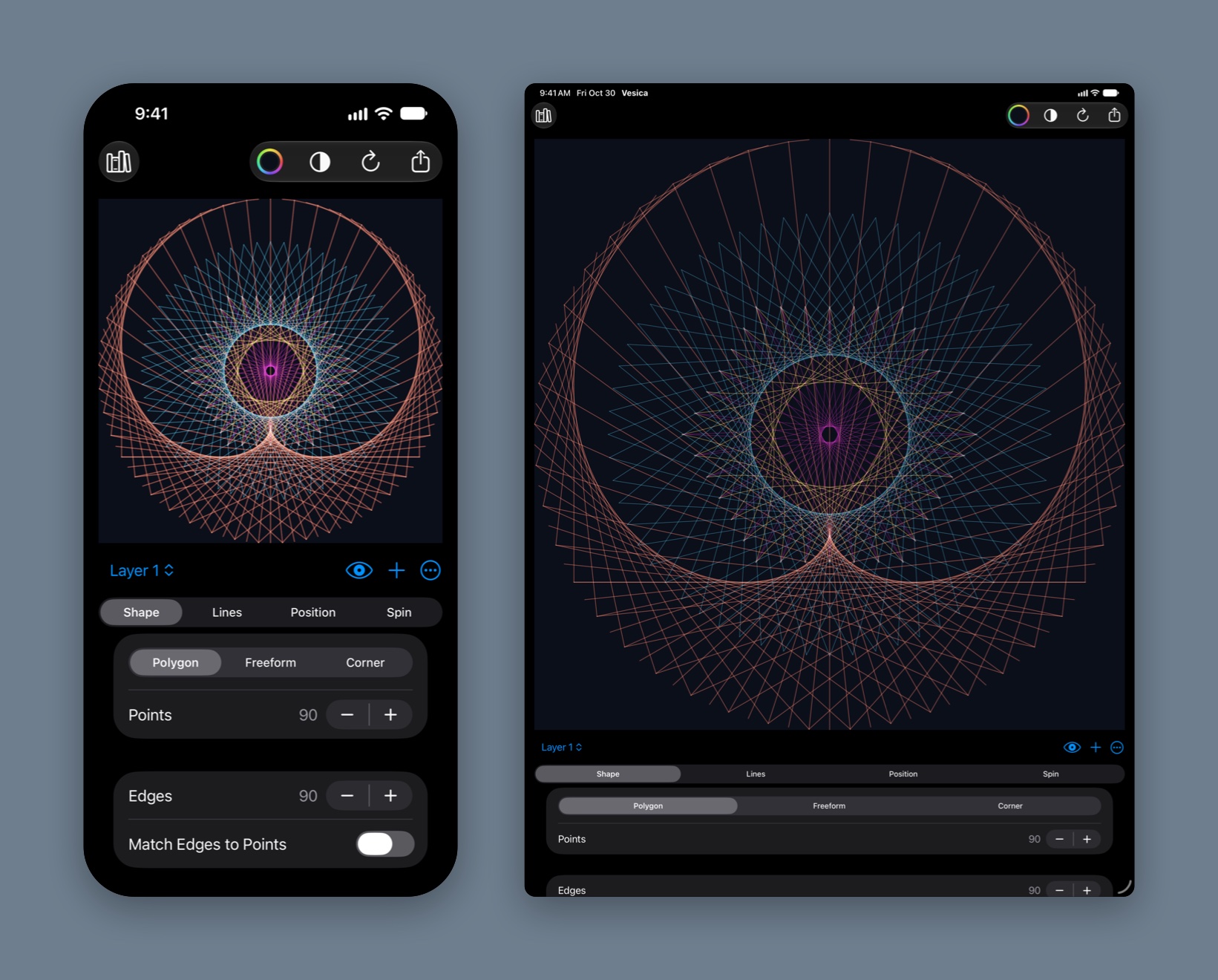
Every point joins the point i times k. It's the times table on a circle: 2 gives the cardioid, 3 the nephroid, and the numbers between them morph from one into the next as you slide.
i → n − i
Corner curve
The one from school: points along two arms meeting at any angle, each joined to its opposite, and a parabola appears. Change the step for the curves the ruler never got to.
3–100
Points and edges
Step either count up or down and the pattern redraws as you go. Random fills in a pattern you wouldn't have thought to try.
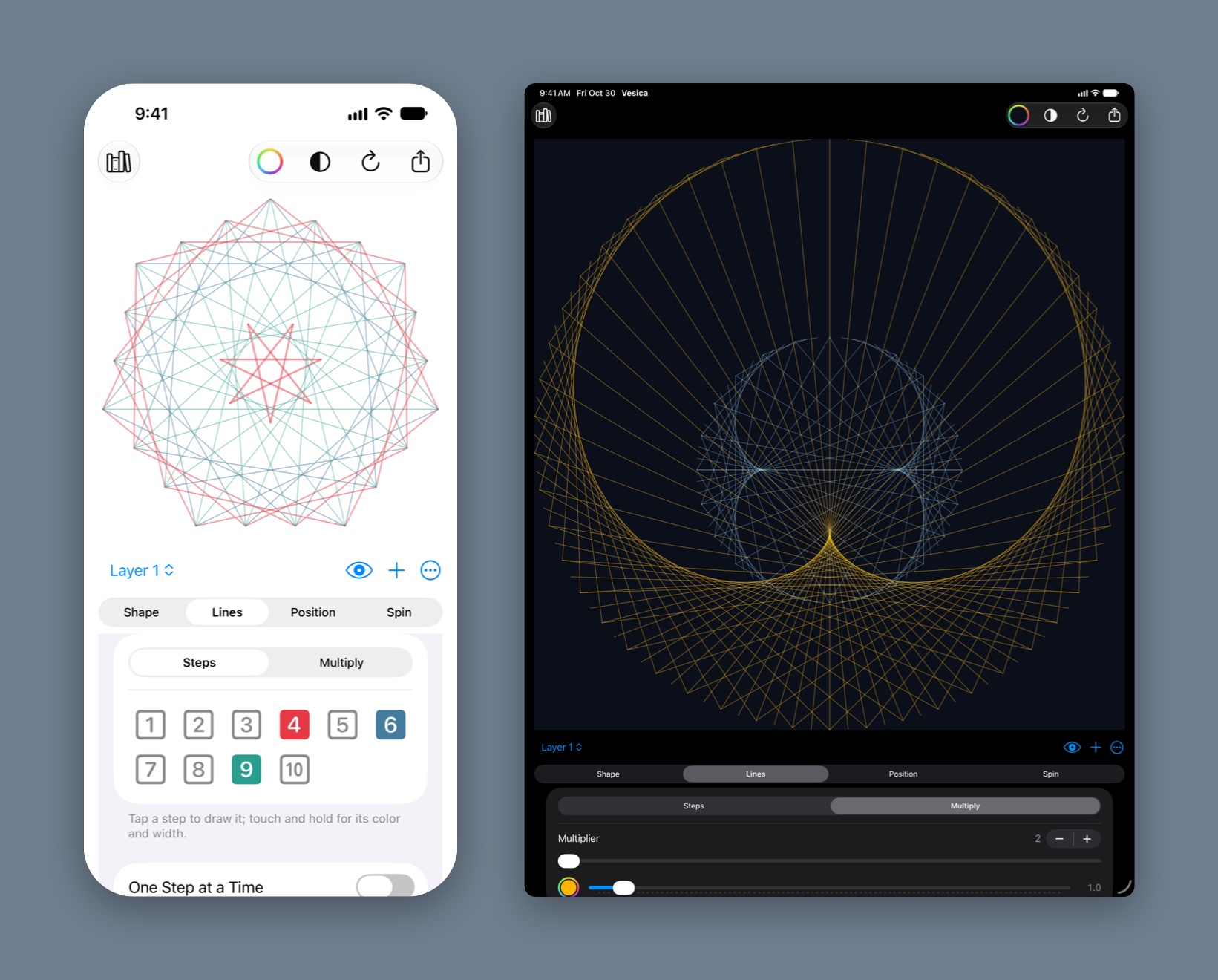
Color and weight for every connection. Each step has its own color and line weight, set from the grid's context menu or the Connections sheet. Multiply has a color and weight of its own.
Light or dark. Pick any background and any line color. Blend modes change how crossings read: Normal and Multiply for light backgrounds, Screen and Lighten to make crossings glow on dark ones.
Shape
Bend it. Stack it.
A curve control bows every chord toward the center or away from it. Layers nest up to eight patterns, each with its own shape, rule, size, rotation, and curve, and new layers size themselves to fit inside the one before.
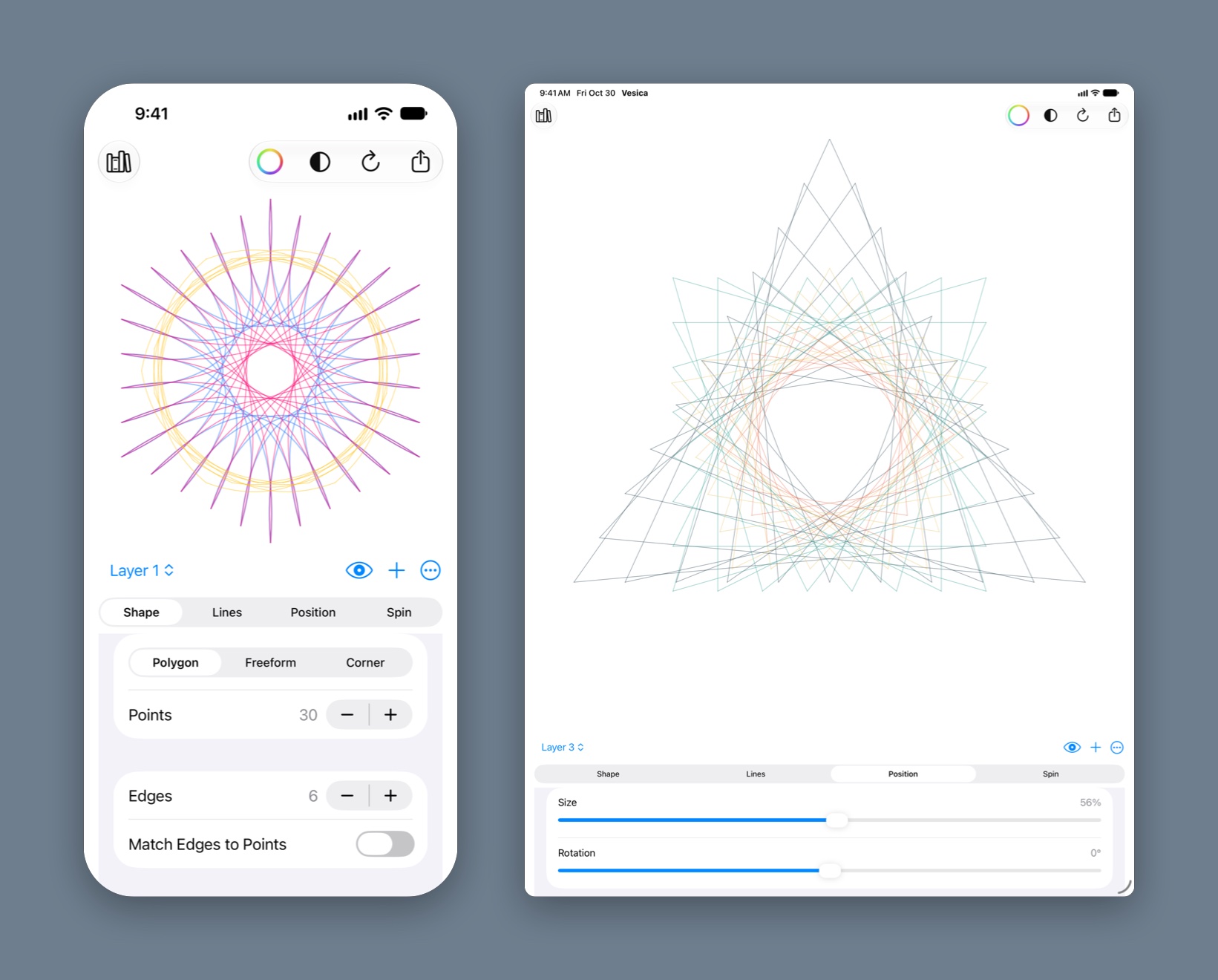
Curve. Positive values bow lines toward the center; negative values bow them outward. Zero is a straight chord.
Layers. Add, duplicate, hide, reorder, and delete. Move a layer outward or inward and the sizes adjust with it. Nudge a layer off center and it orbits as the pattern spins. Reset puts a layer back to its defaults for its position in the stack.
Size and rotation. Each layer scales and rotates on its own, so a second copy of the same pattern turned a few degrees becomes a moiré.
Draw
Draw one stroke.
Get a snowflake.
Freeform mode traces your finger (or your pointer) and resamples the loop evenly, so the same connection rules run along a shape you drew. Add two to twelve folds of symmetry and a mirror, and a single stroke repeats around the center.
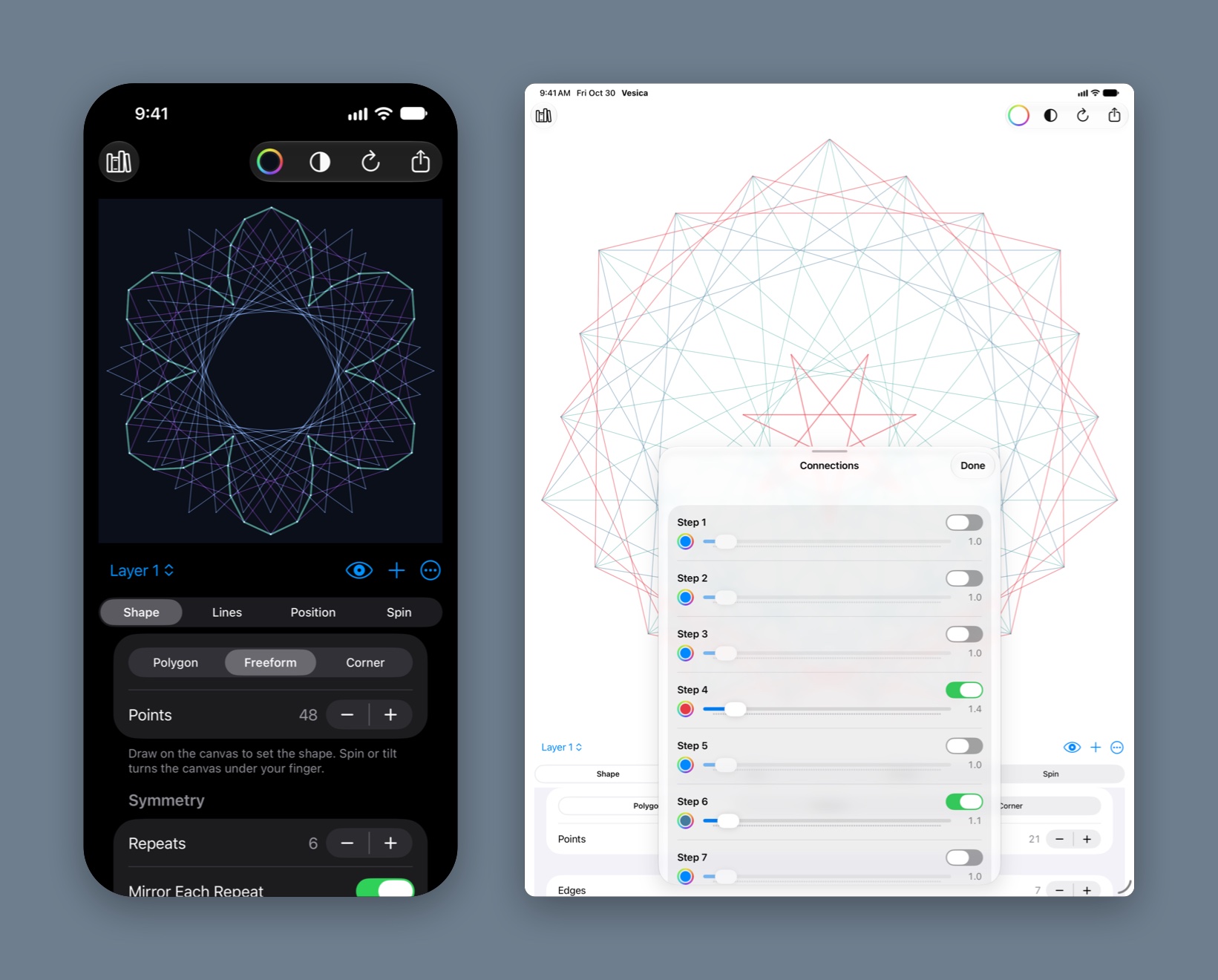
Symmetry after the fact. Change the folds or the mirror after drawing and the loop updates. The stroke stays put when you change the point count or rotate the device.
Draw on a turning wheel. With spin or tilt on, the canvas turns under your finger as you draw. A held finger draws an arc, a slow pull draws a spiral, and the symmetry folds apply on top.
Move
Set every layer spinning.
Flick the pattern and it coasts; set it turning clockwise or counterclockwise and it never stops. Each layer turns at its own speed, or against the rest, or holds still. Stop the spin and every layer goes back to where it started.
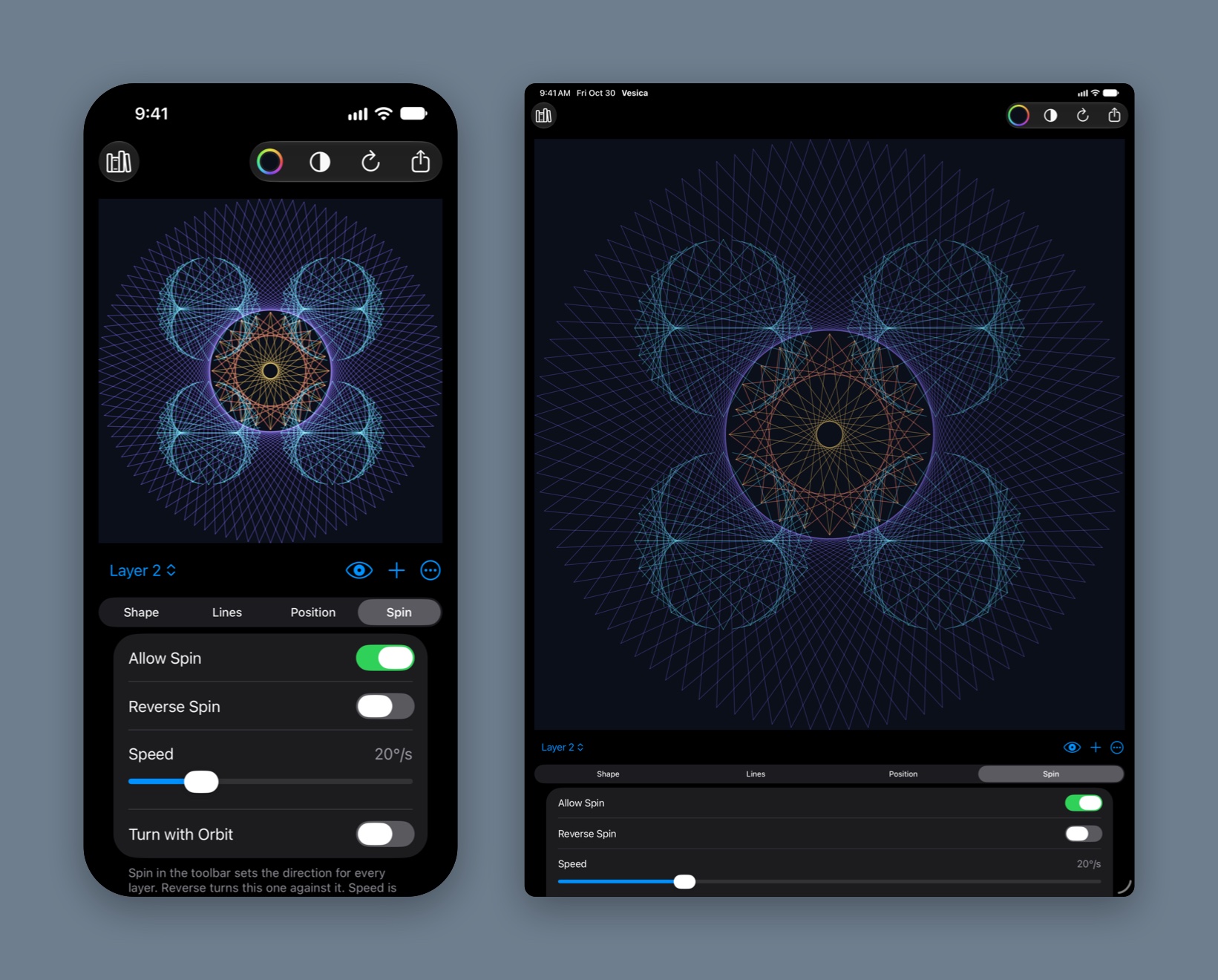
Orbit. Nudge a layer off center and it circles the middle as the pattern spins, turning as it goes or staying upright like a watch's subdial.
Mirror. Reflect a layer across either axis, or both. The reflections turn the other way, so mirrored orbits swing past each other.
Tilt. Tilt your iPhone or iPad and the pattern stays level with the room, whichever way the layers are turning.
Animated SVG
Export it still moving.
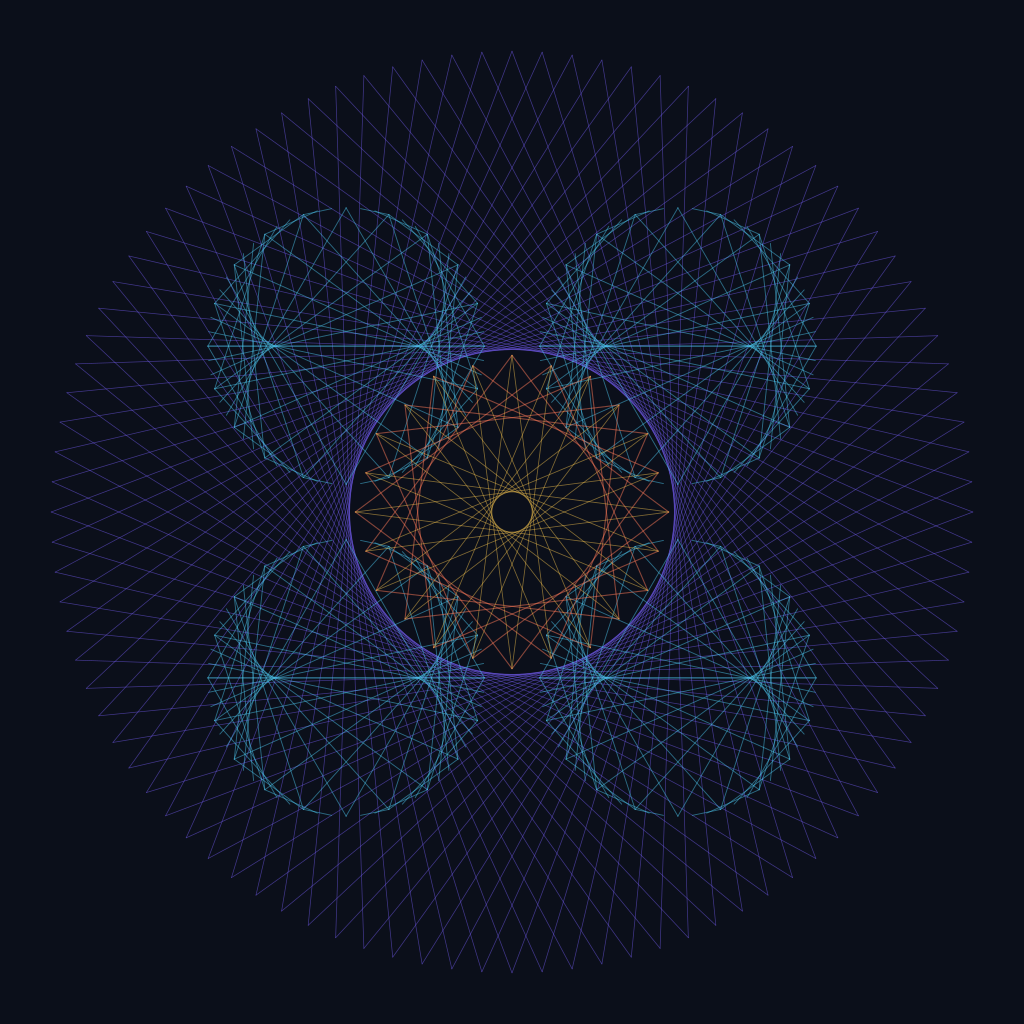
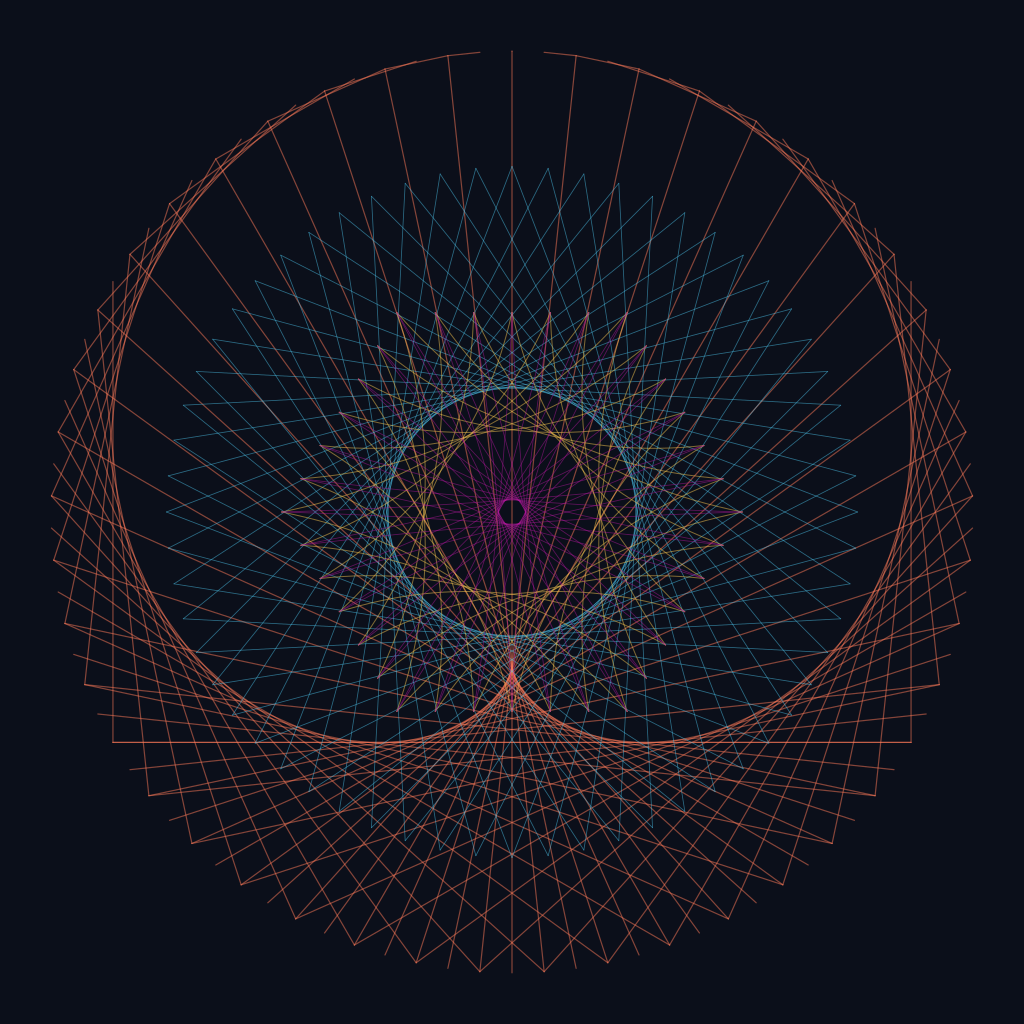
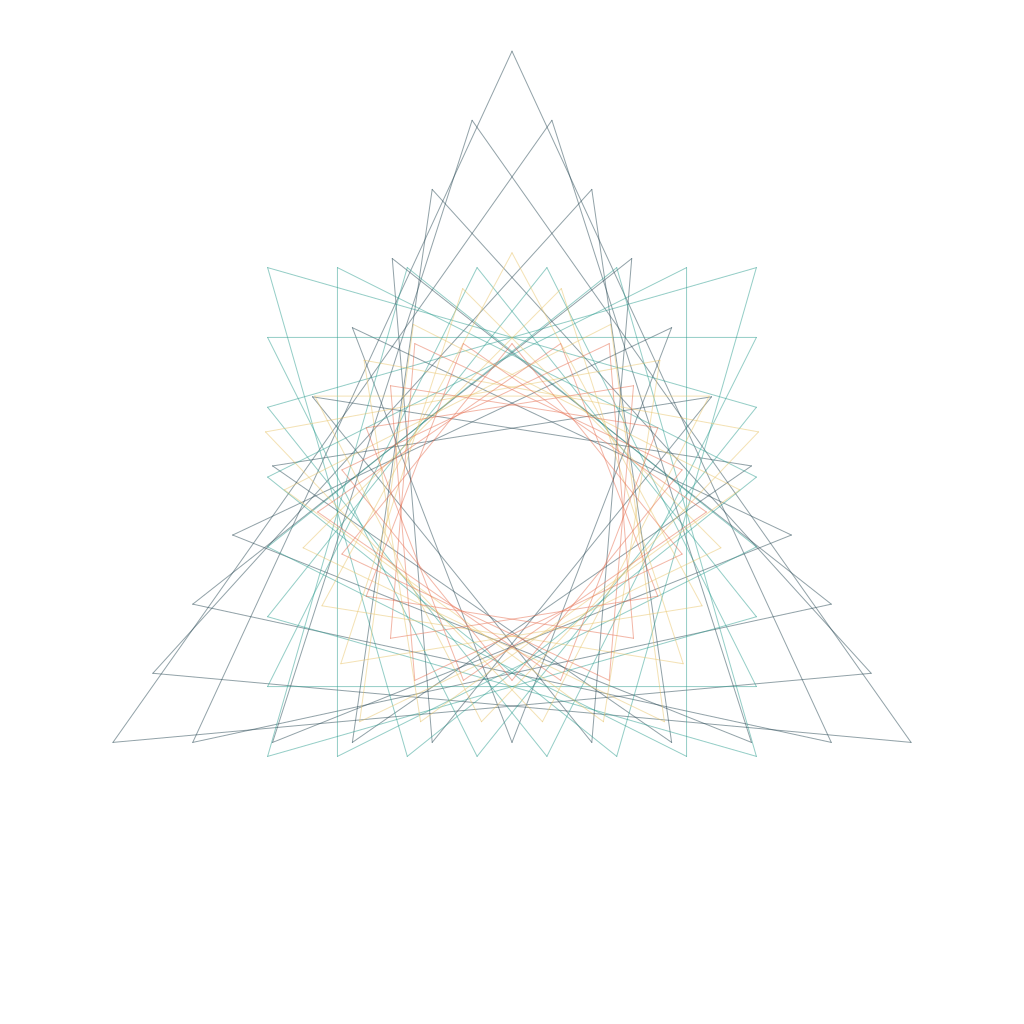
These are vesica's own animated SVG exports, playing live, not videos. Each layer keeps its speed and direction and loops on its own, so the motion never jumps, and the file is barely larger than a still one. Animated SVGs play in web browsers; design and cutting tools open them as a still drawing.
Export
Keep it.
When it's right, take it with you as a real vector file, or print the nail template and build it for real.
SVG and PDF
True vector files: every line stays a line, for plotters, cutters, and design tools.
Animated SVG
The same vector file, still spinning. Every layer turns at its own speed, orbits and mirrors included, and loops without a seam.
Library
Save a pattern by name and load it later. The library follows your iCloud account, so what you save on the phone is on the Mac too.
Share a link
Send the pattern itself, not a picture of it. Whoever opens the link in Vesica gets your shapes, connections, colors, and layers, ready to edit.
String template
A printable page with every nail numbered at the size you choose, up to 7.5 inches, and the winding order for each thread. Build the pattern with real nails and string.
PNG and wallpaper
A 2048-pixel image for sharing, and a 3072-pixel wallpaper with room for the lock screen to crop.
Haptics
A tick as a count changes, a bump when the multiplier lands on a whole number, and a nudge when a flick lets go.
On the Mac
The same app, with the pattern beside the controls and the export menu in the toolbar.
Pricing
Buy it once.
vesica is a one-time purchase on the App Store. No subscription, no in-app purchases, no ads, no account. Everything on this page is in the box.
Price. The price is shown on the App Store and varies by country and region. One purchase covers iPhone, iPad, and Mac under the same Apple Account.
Support an indie developer. Your purchase keeps vesica growing. See the release notes for what's changed.
Privacy
Data Collection
vesica does not collect any data. There are no accounts, analytics, ads, or tracking, and the app makes no network requests. Nothing you draw leaves your device unless you export or share it yourself.
Purchases
The purchase is handled entirely by Apple. vesica never learns who you are.
Data Sharing
Given the above points, vesica cannot share data. vesica is a SwiftUI app and makes use of Apple's developer libraries exclusively; no third-party libraries. These Apple libraries do not, to the best of my knowledge, collect data.
Data Retention
Since vesica does not collect data, vesica cannot retain data. Saved patterns are yours to delete from the Library at any time, which removes them from iCloud as well.
Support
There's not much that can go wrong with vesica. That said, if after restarting your device and reproducing the issue you think you've found a bug, please reach out; I don't like bugs either. See the release notes for what's changed.
Terms
Feel free to use vesica at your leisure for whatever purpose you have in mind. Here's Apple's standard EULA.
Refunds
All vesica purchases are final. I cannot issue refunds for charges to your Apple Account, but you can ask Apple to do so.
Your patterns
Anything you make and export with vesica is yours.